
Your microphone. Your Mac’s audio. Or both.
Choose your audio input, then start the meeting. Your Mac’s audio captures sound from apps, including audio played in the browser.
YOUR ALL-IN-ONE MAC APP
A message to dictate, a screenshot to annotate, a demo to record. Kaptivox brings your everyday tools together. With Studio, create editable videos, transcribe meetings and recover the words in your files.
macOS 15.2+ · Apple SiliconWindows and Linux coming soon.
New · Discover the editable StudioYOUR EVERYDAY TOOLS, TOGETHER
From your first idea to the message you share: one app, several ways to express yourself.
Messages, notes, emails. Speak and insert your text into compatible fields.
An image, an arrow, an explanation. Make a detail clear at a glance.
Screen, camera, voice and annotations. With Studio, rework your composition even after recording.
With Studio, transcribe your meetings and audio or video files on your Mac.
Floating palette
Images, video, presentations, dictation, meetings: keep your shortcuts above your apps, even when the main window is closed. Move the palette wherever it suits you, or collapse it to a small logo.

01 / EVERYDAY DICTATION
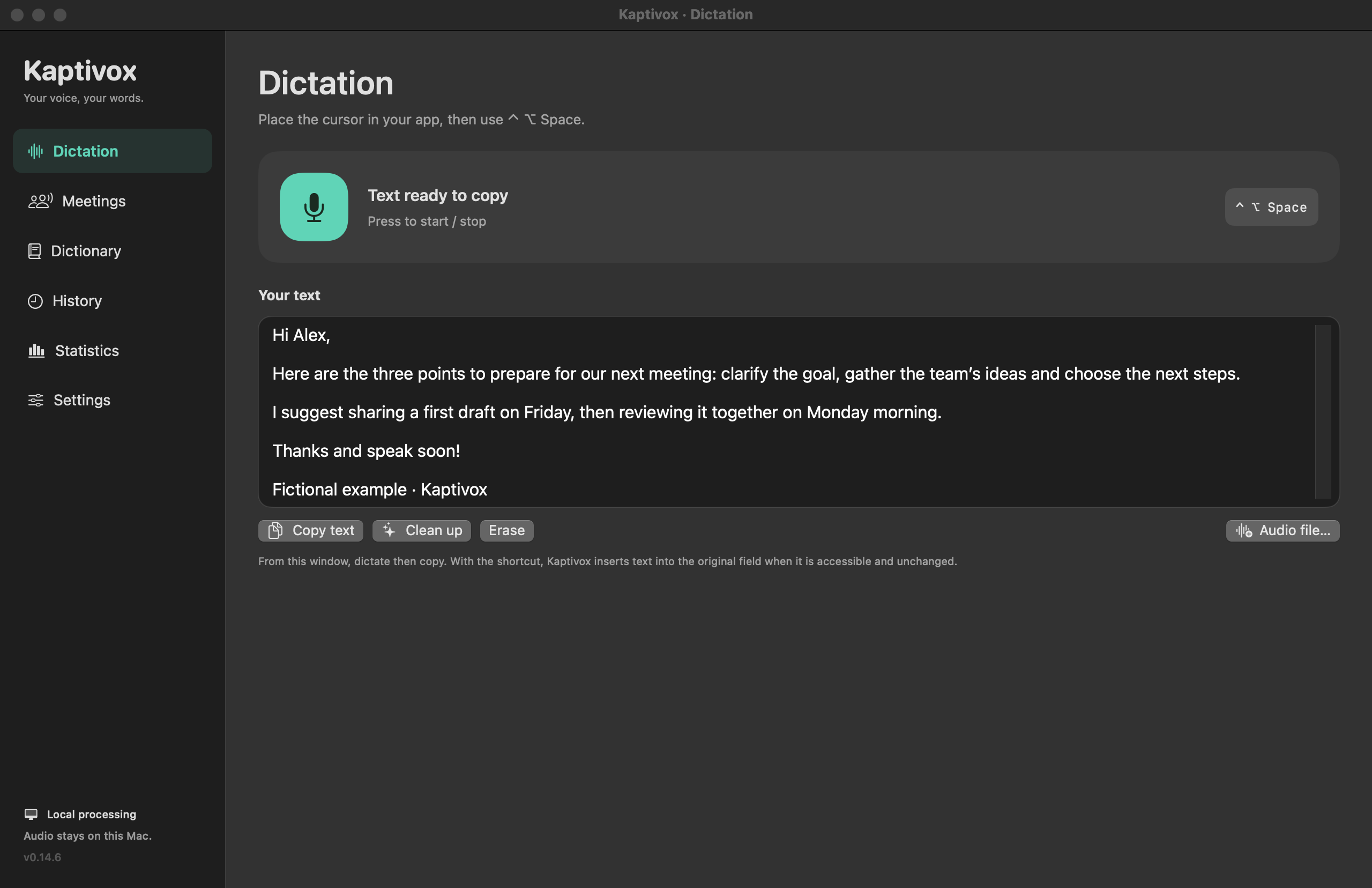
An email, a note, a text to write: speak, and Kaptivox turns your voice into text on your Mac. Insert it into the compatible field where you are working, and find your dictations in the history.
Text insertion uses the macOS Accessibility permission. Always review transcripts before using them.
MEETINGS AND TRANSCRIPTION · STUDIO
Use a video captured with Kaptivox, import an audio or video file, or record a meeting. Find timestamped passages, edit the text and reuse it. You can also export your video transcripts as SRT subtitles.
Compare Pro and StudioMEETINGS, WITH STUDIO
Record your meetings with your microphone, your Mac’s audio or both. Video calls, interviews or online classes: revisit the conversation in a local transcript, with timestamped passages.
Compare featuresChoose your audio input, then start the meeting. Your Mac’s audio captures sound from apps, including audio played in the browser.
Find timestamped passages, edit the text, add your notes and export as text, Markdown or JSON.
Transcription on your Mac, once the speech model is set up.
PRIVACY BY DESIGN
Dictate, capture and transcribe on your Mac. Speech recognition processes your audio locally once the model has been downloaded. You do not need to send your recordings to a transcription service.
Model downloads and updates require an internet connection. Remote destinations and AI cleanup are separate choices.
Keep your captures on your Mac. If you configure Nextcloud / WebDAV, SSH or SFTP, the relevant files are sent to that destination; a local copy is kept.
Off by default. Enable it on demand or automatically to remove hesitations and correct punctuation. Choose your provider: OpenAI, Claude, Ollama or an OpenAI-compatible endpoint, using your own credentials.
With a cloud provider or a remote endpoint, the text to be cleaned up leaves your Mac and is sent there. Ollama with a locally running model can process it on your Mac; a cloud model remains a remote service, even through Ollama. You can turn cleanup off at any time.
French, English, German, Spanish, Italian and Portuguese. A choice of interface languages and automatic spoken language recognition.
YOURS TO EXPLORE
Explore the possibilities with these illustrated examples.

The next detail to improve is right here.
Hi Camille, I’m sending you the presentation with my annotations. Shall we discuss it tomorrow?
An illustrated feature demonstration. Fictional content, with no access to your screen, camera or microphone.
02 / CAPTURE AND ANNOTATE
Feedback to give, a process to explain, an idea to share. Capture what matters and guide the eye.
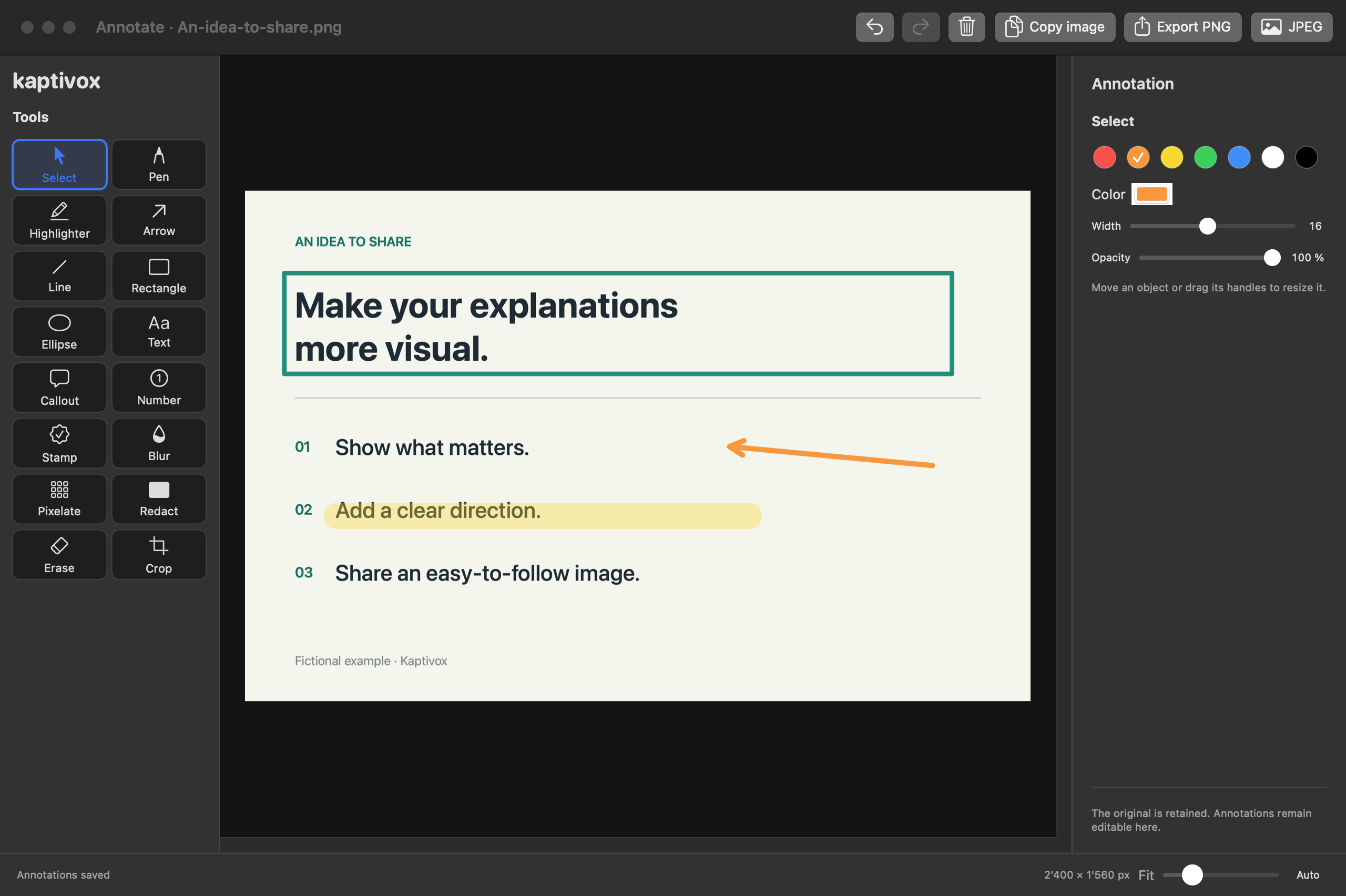
An area, a window or the whole screen. Screenshots are captured without a countdown.
Arrows, text, shapes, numbers, highlighting and cropping. You can open existing images to annotate them too.
Add a blur or a mask. For video, set up the areas to mask before recording and check the result before sharing.
Find your captures in a list or as thumbnails, rename them, and keep your tools close at hand in the floating palette.
03 / PRESENT AND RECORD
A tutorial, a training session, a product demo. Compose your screen, camera and visual identity in Studio. Record, then refine scenes, text and annotations until you have the version you need.
Explore the Studio illustrationExample compositions · Demo illustrations
Your camera, your name, your topic.
Screen, video inset and live annotations.
Your turn A consistent look from start to finish.
Camera feed or video file as an inset
Choose your microphone, Mac audio and video audio
Editable layers, visual identity and scenes in Studio
These compositions are illustrations, not screenshots of Studio. Pro includes presentations with an overlay; Studio adds projects, layers, scenes and editing after recording.
EDITABLE STUDIO · NEW IN 0.15.0
Need to move a logo, fix a title or reframe the camera? Studio keeps screen and overlay sources separate. Rework the composition after recording and export a new version without recording everything again.
Screen, camera, logo, images and titles become layers. Move, resize, group and arrange elements. Set scenes, transitions and their timing to give your demonstration the right pace.
Bring logos, colours, backgrounds and a font together in one visual identity. Keep scene-specific variations and save compositions as templates to prepare your next tutorial faster.
Add an arrow, rectangle or text. Adjust annotations’ positions, colours and timing. Click and shortcut effects enabled before recording also remain editable.
Save your project and its media in a .kaptivox package. Reopen the linked project from the library, undo or redo edits, and prepare another version of the same video.
Export MP4 with HD and 4K profiles. Prepare a landscape, portrait or square layout to adapt your content to its next use.
Resolution and smoothness depend on your Mac, source media and chosen profile. Exporting at 60 fps does not recreate frames missing from a slower recording.
YOUR SOURCES, YOUR RECORDING
Show what’s on your screen, add your face and let your voice be heard. Choose the sources that suit your capture or presentation.
Focus on the detail that matters or show your entire desktop, as an image or a video.
Choose your connected camera or add a video inset. Adjust the inset’s shape, size and position.
Built-in microphone, USB microphone or detected virtual input: select the source that suits your setup.
A call, a video, a class in the browser: include audio played on your Mac, with or without your microphone.
Depends on available sources and macOS permissions. Your Mac’s audio is a global source, with no individual app audio selection.
GET STARTED
The setup assistant helps you prepare Kaptivox: your features, speech model, microphone and relevant permissions. See what is ready before you begin.
Capture, video, dictation: choose what you want to use. The assistant adapts setup to your selected features.
For dictation and transcription, start the speech model download from the assistant. Speech processing can then run on your Mac.
Choose and test your microphone, then follow macOS permission requests one at a time. A short test dictation lets you check the result in the assistant.
You can postpone setup and reopen the assistant from the Kaptivox menu. Permissions still require your consent in macOS.
THE RIGHT WORKSPACE FOR YOUR IDEAS
Two editions. Three options to suit the way you work.
A trial lasting 7 days is planned for launch.
Capture, annotate, record and dictate every day.
CHF 29.–
One-time purchase · 1 Mac
Create editable videos. Add meetings and transcription.
CHF 49.–
One-time purchase · 1 Mac
Create editable videos. Add meetings and transcription.
CHF 69.–
One-time purchase · 3 Macs
| Feature | Pro | Studio |
|---|---|---|
| Screenshots and video recordings | Included | Included |
| Annotations, cropping and masking | Included | Included |
| Presentations with a video inset | Included | Included |
| Dictation and history | Included | Included |
| Local and remote destinations | Included | Included |
| Studio projects, editable layers and scenes | — | Included |
| Meeting recording | — | Included |
| Audio and video transcription | — | Included |
Studio offers the same features for 1 or 3 Macs. Licence terms will be available before sales open.
BEFORE YOUR FIRST CAPTURE
Kaptivox is a native app for Apple Silicon Macs (M1 chips and later), running macOS 15.2 or later. The speech models need to be downloaded before you can use local dictation and transcription. Windows and Linux versions are also planned soon.
Yes. Open an image in Kaptivox, add your annotations, then export the result. You can also annotate a new screenshot, crop it, add text or hide information.
A camera or video file as an overlay, with adjustable shape, size and position. Choose your microphone and Mac audio. Studio adds an editable project with screen, camera, image, logo and text layers, scenes, transitions and a reusable visual identity.
Captures and speech recognition can stay on your Mac. You choose a remote destination or an AI service separately. If you enable a cloud AI provider, the text to be corrected leaves your Mac. AI cleanup can be disabled.
Yes, with a Studio project that keeps screen and overlay sources separate. You can reposition the camera, change logos, text, scenes and annotations, then export again. An imported MP4 remains a flattened video: a camera already embedded in it cannot be separated. Privacy masks applied to the sources remain irreversible.
Studio exports MP4 with horizontal HD and 4K profiles, plus vertical HD and square HD. Profiles up to 60 fps are available, depending on the source media and your Mac. Choose the format that fits your content; raising the export frame rate does not recreate frames missing from the recording.
The assistant guides you through feature selection, an explicit speech model download, macOS permissions and a microphone test. A local test dictation helps verify setup. You can postpone these steps and reopen the assistant from the Kaptivox menu; each permission remains yours to grant.
The interface is available in French, English, German, Spanish, Italian and Portuguese. It can follow your macOS language. The speech engines automatically recognise the language being spoken; transcription does not mean translation.
Blur reduces detail without guaranteeing that it becomes unreadable. Use an opaque mask to hide information. In a video, masked areas are set up before recording and stay in place: they do not automatically track the content. Check the exported file before sharing it.
Pro costs CHF 29 for 1 Mac: captures, annotations, presentations with an overlay and dictation. Studio adds editable video projects, layers, scenes, visual identity, meetings and file transcription, at CHF 49 for 1 Mac or CHF 69 for 3 Macs. Both Studio offers include the same features. Sales are still being prepared.
You can keep using your version of Kaptivox without renewing. If you would like to receive new updates, optional renewal costs CHF 19 for 12 more months. The price is the same for Pro, Studio for one Mac and Studio for multiple Macs (3 Macs).
We are preparing for launch. A 7-day trial is planned, followed by the Pro and Studio editions. Downloads, payments and licence activation are not yet available. This page lets you explore the product and compare the planned editions.